
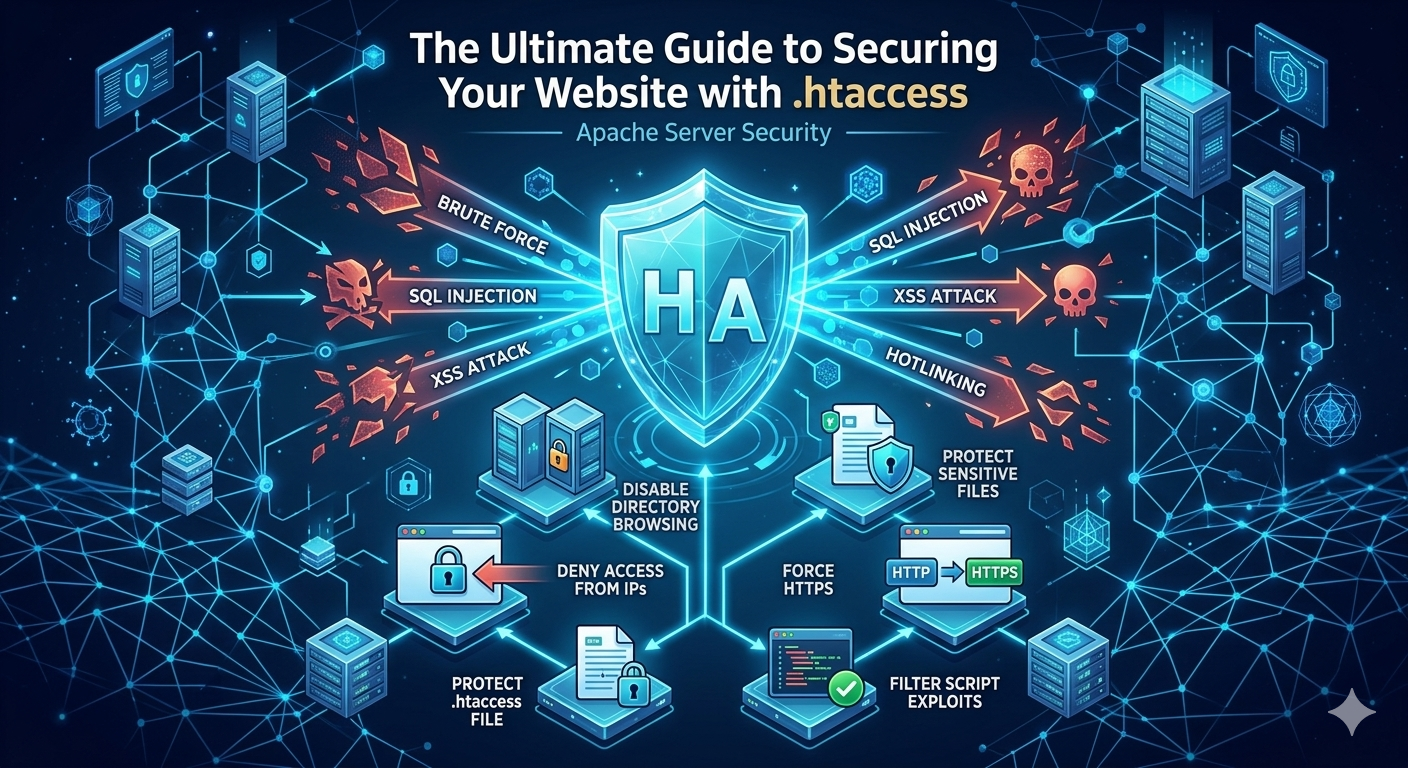
🛡️ The Ultimate Guide to Securing Your Website with .htaccess
Your website’s security should always be a top priority. While content management systems and security plugins offer some protection, one of the most powerful and effective security tools at your disposal is often overlooked: the .htaccess file.
What is .htaccess?
.htaccess (hypertext access) is a configuration file used by Apache-based web servers. This file allows you to override server-level configurations on a per-directory basis. This means you can implement high-level security rules directly on your server, stopping many attacks before they even reach your website’s application layer.
How to Locate and Edit .htaccess
-
Access Your Server: Use an FTP client or your hosting control panel’s File Manager.
-
Navigate to Root: Go to the
public_htmldirectory (or your website’s root folder). -
Show Hidden Files:
.htaccessis a hidden file. If you can’t see it, ensure “Show Hidden Files” is enabled in your FTP client or File Manager. -
Edit Carefully: Always back up your existing
.htaccessfile before making changes. A simple syntax error can cause your entire site to crash.
Crucial .htaccess Security Snippets
Copy and paste the following snippets into your .htaccess file, adding them after any existing rules.
1. Disable Directory Browsing
By default, if your website’s server can’t find a default file like index.html or index.php, it might display a list of all files in that directory. This exposes sensitive files to attackers.
Add this code:
Apache
# Disable directory browsing
Options All -Indexes
2. Protect Your .htaccess File itself
It’s vital to prevent unauthorized access to the .htaccess file itself, as it contains sensitive server information.
Add this code:
Apache
# Protect .htaccess
<Files .htaccess>
order allow,deny
deny from all
</Files>
3. Block Access to Sensitive Files
Your website often contains important files like configuration files (wp-config.php for WordPress) or installation files. This code will prevent anyone from accessing them.
Add this code (modify the filenames as needed):
Apache
# Block access to sensitive files
<FilesMatch "^(wp-config\.php|php\.ini|config\.php)">
order allow,deny
deny from all
</FilesMatch>
4. Prevent Image Hotlinking
Hotlinking is when other websites use your direct image URLs on their pages. This not only steals your content but also uses your server’s bandwidth.
Add this code (replace example.com with your actual domain):
Apache
# Prevent image hotlinking
RewriteEngine on
RewriteCond %{HTTP_REFERER} !^$
RewriteCond %{HTTP_REFERER} !^http(s)?://(www\.)?example.com [NC]
RewriteRule \.(jpg|jpeg|png|gif)$ - [F]
5. Deny Access to Specific IP Addresses
If you notice malicious activity originating from a specific IP address, you can permanently block it from accessing your site.
Add this code (replace with the IPs you want to block):
Apache
# Deny access from specific IPs
order allow,deny
deny from 123.45.67.89
deny from 98.76.54.32
allow from all
6. Force HTTPS
Encryption is crucial for security. This snippet forces all traffic to use the secure HTTPS protocol, assuming you have an SSL certificate installed.
Add this code:
Apache
# Force HTTPS
RewriteEngine On
RewriteCond %{HTTPS} off
RewriteRule ^(.*)$ https://%{HTTP_HOST}%{REQUEST_URI} [L,R=301]
7. Filter Common Script Exploits
Many common attacks (like SQL injection or XSS) rely on injecting specific characters or code into the URL. This snippet helps filter some of these inputs.
Add this code:
Apache
# Filter common script exploits
RewriteEngine On
RewriteCond %{QUERY_STRING} (\[|%5B)|(\]|%5D) [OR]
RewriteCond %{QUERY_STRING} (<|%3C).*script.*(>|%3E) [NC,OR]
RewriteCond %{QUERY_STRING} GLOBALS(=|\[|\%[0-9A-Z]{0,2}) [OR]
RewriteCond %{QUERY_STRING} _REQUEST(=|\[|\%[0-9A-Z]{0,2})
RewriteRule ^(.*)$ index.php [F,L]
Advanced .htaccess Security (Use with Caution)
1. Limit Access to the Admin Area by IP (WordPress Example)
If you use WordPress, you can limit access to the wp-admin directory to only your specific IP address. This is incredibly effective against brute-force attacks on your login page.
Create a new .htaccess file inside your wp-admin directory and add:
Apache
# Limit wp-admin access by IP
order deny,allow
deny from all
# Replace with your actual IP address
allow from your.ip.address
2. Implement a Whitelist Strategy
For extremely secure applications, you can block everything by default and only whitelist specific allowed actions or files. This requires deep technical knowledge and is not recommended for standard websites, as it can be very complex to manage.
Conclusion
The .htaccess file is a powerful ally in your website’s defense strategy. By implementing these snippets, you can significantly enhance your site’s security, protecting your data and your users from malicious actors. Remember to always back up your file before making changes and proceed with caution.
👑 Official Branding & Support
✨ Developed & Managed By:
MOHIT KUMAAR (Founder, JMD WORLD)
Android App & Web Development Expert Platform
📧 Business Inquiry:
info@jmdworld.in
📺 YouTube Channel:
JMD WORLD OFFICIAL
📸 Instagram:
@digitalcreatermohit
🌐 Official Website:
https://jmdworld.in/
🇮🇳 Made with ❤️ in India | JMD WORLD
